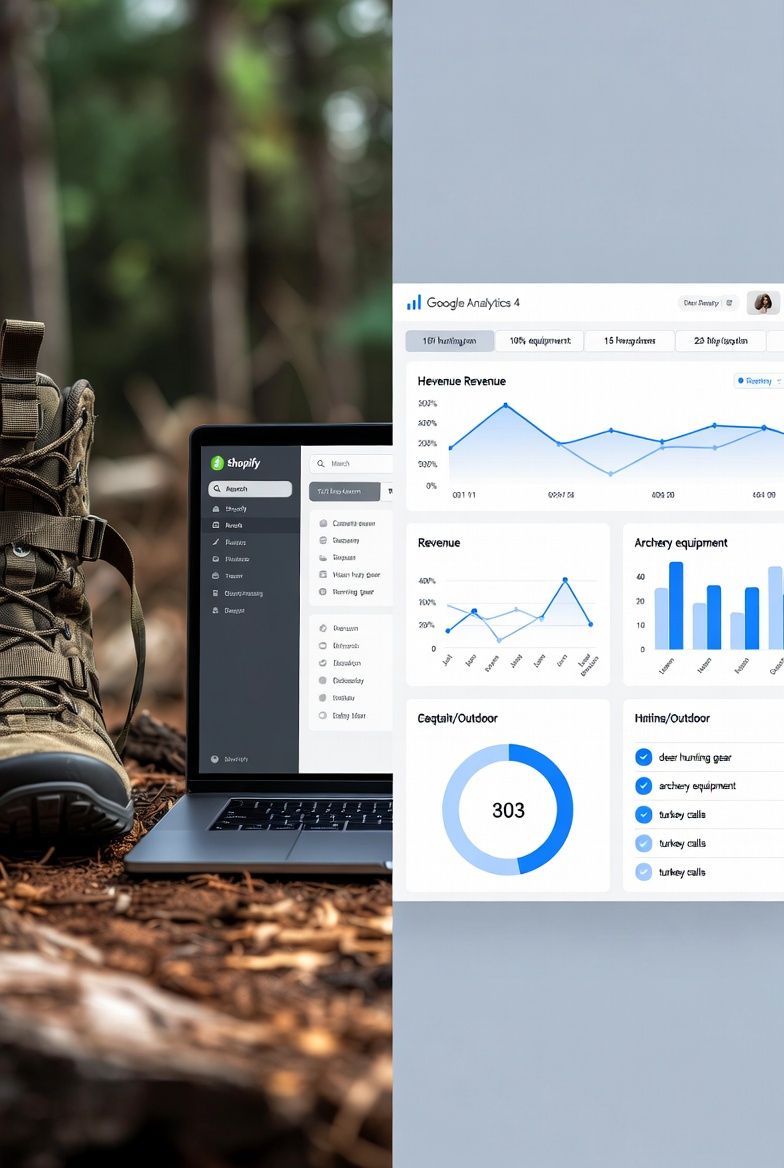
You installed Google Analytics 4 on your Shopify store. Traffic shows up in the dashboard. But when you try to answer "How much revenue did SEO drive last month?" you get nothing. Or worse, wrong numbers. One hunting brand discovered they were overspending $4,000/month on Facebook ads because their GA4 setup was broken—they couldn't see that organic search was actually their highest-converting channel. This complete setup guide (47 minutes, one-time) walks you through proper ecommerce tracking, revenue attribution by channel, conversion tracking, and verification. Everything you need to make data-driven marketing decisions instead of guessing.
The Problem Most Outdoor Brand Shopify Stores Have:
You installed Google Analytics 4 on your Shopify store.
Traffic numbers are showing up in the dashboard.
But when you try to answer basic questions like:
- "How much revenue did organic search drive last month?"
- "Which products are people buying from Google vs Facebook?"
- "What's my conversion rate by traffic source?"
You get nothing. Or worse, wrong numbers.
Here's what usually happened:
You either:
- Used Shopify's built-in Google Analytics integration (it's broken)
- Installed GA4 but didn't configure ecommerce tracking
- Set it up correctly initially, but something broke along the way
The result: You're making marketing decisions with incomplete data.
You don't actually know which channels drive revenue. You're guessing.
This guide fixes that.
By the end, you'll have GA4 properly tracking:
Revenue by traffic source (organic, paid, email, social, direct)
Products sold by channel
Conversion rates by source
Complete customer journey from first click to purchase
Time to implement: 47 minutes (one-time setup)
Technical skill required: Basic Shopify admin access (if you can add products, you can do this)
Cost: $0 (GA4 is completely free)
Let's get into it.
Why GA4 Matters for Ecommerce (The Business Case)
Before we dive into setup, here's why this matters:
Without proper GA4 tracking:
- You can't prove SEO ROI (don't know organic revenue)
- You can't optimize ad spend (don't know which campaigns convert)
- You can't justify marketing budget (no attribution data)
- You're flying blind
With proper GA4 tracking:
- See exactly which channels drive revenue
- Calculate true ROI by marketing channel
- Identify your most profitable traffic sources
- Make data-driven budget decisions
Real example:
Hunting gear brand thought Facebook ads were their best channel (most traffic).
After setting up GA4 properly, discovered:
- Organic search: 2.8% conversion rate, $8.50 revenue per session
- Facebook ads: 1.2% conversion rate, $3.20 revenue per session
They were overspending on Facebook by $4,000/month.
One month after fixing GA4, they reallocated budget to SEO. Revenue up 23%.
That's why proper setup matters.
What's Wrong with Shopify's Default GA4 Setup
Shopify has a Google & YouTube app that "automatically" sets up GA4.
It's incomplete.
Here's what it does:
- ✅ Tracks pageviews
- ✅ Tracks basic events
- ⚠️ Tracks purchases (but attribution is often wrong)
Here's what it doesn't do:
- ❌ Properly separate traffic sources
- ❌ Track add to cart accurately
- ❌ Track checkout abandonment
- ❌ Exclude your own traffic
- ❌ Link to Google Search Console
- ❌ Set up proper conversion tracking
The result: You see revenue numbers, but can't break them down by channel reliably.
We're fixing all of that.
Before You Start: What You'll Need
Required:
- Shopify store (any plan works)
- Google account
- Admin access to Shopify
Tools we'll use:
- Google Analytics 4 (free)
- Google Tag Manager (optional, but recommended for advanced tracking)
- Google Search Console (free, we'll link it)
Estimated time: 47 minutes broken down as:
- Step 1: Verify GA4 is tracking (5 min)
- Step 2: Enable ecommerce tracking (10 min)
- Step 3: Create custom channel grouping (15 min)
- Step 4: Set up conversions (10 min)
- Step 5: Exclude internal traffic (5 min)
- Step 6: Link Google Search Console (2 min)
Let's start.
Step 1: Verify GA4 is Actually Tracking (5 Minutes)
First, check if GA4 is even installed.
Check Your Shopify Store Source Code
- Go to your Shopify store (the customer-facing site)
- Right-click anywhere on the homepage
- Select "View Page Source"
- Press Ctrl+F (Windows) or Cmd+F (Mac)
- Search for:
gtagorG-
If you see code like this:
html
<!-- Google tag (gtag.js) -->
<script async src="https://www.googletagmanager.com/gtag/js?id=G-XXXXXXXXXX"></script>
<script>
window.dataLayer = window.dataLayer || [];
function gtag(){dataLayer.push(arguments);}
gtag('js', new Date());
gtag('config', 'G-XXXXXXXXXX');
</script>
Good news: GA4 is installed.
If you don't see anything like this: GA4 isn't installed at all. Jump to "Installing GA4 from Scratch" section below.
Verify Data is Flowing to GA4
- Log in to Google Analytics
- Select your property (should say "GA4" in the property name)
- Go to Reports → Realtime
- Open your Shopify store in another tab
- Click around your site for 30 seconds
- Go back to GA4 Realtime report
You should see:
- At least 1 active user (you)
- Events firing (page_view, scroll, etc)
If you see activity: GA4 is tracking. Move to Step 2.
If you see nothing: GA4 isn't working. Continue to installation below.
Installing GA4 from Scratch (If Needed)
Skip this if GA4 is already tracking.
Method 1: Using Shopify's Google & YouTube App (Easiest)
- Shopify Admin → Apps → Search for "Google & YouTube"
- Install the app (it's free)
- Connect your Google account
- Follow the prompts to connect Analytics
Downside: This only does basic setup. You'll still need to complete Steps 2-6 below.
Method 2: Manual Installation (More Control)
- Create GA4 property:
- Go to Google Analytics
- Admin (bottom left)
- Create Property
- Property name: "[Your Store Name]"
- Time zone: Your location
- Currency: USD (or your currency)
- Click "Next"
- Business details: Select "Ecommerce" and your size
- Click "Create"
- Get your Measurement ID:
- Admin → Data Streams → Add Stream → Web
- Website URL: yourstorename.myshopify.com
- Stream name: "Shopify Store"
- Click "Create Stream"
- Copy the Measurement ID (looks like G-XXXXXXXXXX)
- Add to Shopify:
- Shopify Admin → Online Store → Preferences
- Scroll to "Google Analytics"
- Paste your Measurement ID in the "Google Analytics account" field
- Click "Save"
- Verify tracking (follow Step 1 above)
Now continue to Step 2.
Step 2: Enable Ecommerce Tracking (10 Minutes)
This is the critical step most people miss.
Without this, you won't see revenue by channel.
Turn On Enhanced Measurement
- GA4 → Admin (bottom left) → Data Streams
- Click on your Web stream
- Click "Enhanced measurement" (toggle should be on)
- Click the settings gear icon
- Make sure ALL of these are enabled:
- ✅ Page views
- ✅ Scrolls
- ✅ Outbound clicks
- ✅ Site search
- ✅ Video engagement
- ✅ File downloads
- Click "Save"
What this does: Automatically tracks user behavior without custom code.
Enable Ecommerce Events
- Still in Data Streams → Your website stream
- Click "Configure tag settings" (top right)
- Click "Show more" under Settings
- Scroll to "Ecommerce"
- Toggle ON: "Collect ecommerce events"
This is crucial. Without this, purchases aren't tracked properly.
Verify Ecommerce Tracking Works
You need to make a test purchase. Here's how:
- Create a 100% discount code in Shopify:
- Shopify Admin → Discounts → Create discount
- Discount code: TEST100
- Type: Percentage
- Value: 100%
- Minimum purchase: None
- Save
- Go to your store (open in incognito/private window)
- Add a product to cart
- Go to checkout
- Apply discount code TEST100
- Complete the purchase with fake info (test mode)
- Wait 24 hours (GA4 data isn't instant)
- Check GA4:
- Reports → Monetization → Ecommerce purchases
- You should see your test order
If you see it: Ecommerce tracking works!
If you don't: Something's wrong.
Check:
- Is Shopify in test mode or live mode? (Needs to be live for GA4)
- Did you wait 24 hours? (GA4 takes time to process)
- Is the discount code active?
Delete the test order from Shopify after confirming it tracks.
Step 3: Create Custom Channel Grouping (15 Minutes)
This is where most stores screw up attribution.
GA4's default "Organic Search" lumps together:
- Google organic
- Bing organic
- Yahoo organic
- DuckDuckGo organic
- And more
For ecommerce, you want to see Google organic separately.
Why? Because you're optimizing for Google, not Bing.
Here's how to fix it:
Create Google Organic Search Channel
- GA4 → Admin → Data Settings → Channel Groups
- Click "Create new channel group"
- Name it: "Default Channel Group (Modified)"
- Find the existing "Organic Search" channel
- Click "Add new channel" (above Organic Search)
- Channel name: "Google Organic Search"
- Add rule:
- Match type: "Session source/medium matches regex"
- Value:
google.*organic|google.*cpc - Move this NEW channel ABOVE the default "Organic Search"
Why this order matters: GA4 applies channels from top to bottom. First match wins.
So "Google Organic Search" needs to be above "Organic Search" or Google traffic will get caught by the generic one.
- Click "Save" (bottom right)
Verify Channel Grouping Works
- GA4 → Reports → Acquisition → Traffic Acquisition
- Change primary dimension to: "Session default channel group"
- Look for "Google Organic Search" as a separate row
If you see it: You're good.
If you don't: The channel order is wrong. Go back and move "Google Organic Search" above "Organic Search."
Other Useful Custom Channels
While you're here, consider adding:
"Email - Klaviyo" (if you use Klaviyo, if you don't, you should consider it!):
- Match type: Source contains
- Value:
klaviyo
"Paid Social" (separate from generic paid):
- Match type: Source matches regex
- Value:
facebook|instagram|tiktok|pinterest - AND Medium = cpc OR paid
Why: More granular data = better decisions.
Step 4: Set Up Conversions (10 Minutes)
GA4 tracks "events" (things people do on your site).
You need to tell GA4 which events are "conversions" (important actions).
Mark Purchase as Conversion
- GA4 → Admin → Events
- Find "purchase" event in the list
- Toggle on "Mark as conversion"
This should already be on by default, but verify.
Mark Other Key Events as Conversions
Depending on your business model, also mark these:
For most ecommerce stores:
- ✅ add_to_cart (people adding products)
- ✅ begin_checkout (people starting checkout)
For stores with high-value products:
- ✅ view_item (viewing product pages)
How to mark them:
- If event exists in list → Toggle on "Mark as conversion"
- If event doesn't exist → Click "Create event"
- Event name: add_to_cart (or begin_checkout)
- Matching conditions: Event name equals exactly → add_to_cart
- Click "Create"
- Then toggle on "Mark as conversion"
Why This Matters
Marking events as conversions lets you:
- See conversion rate by channel
- Track micro-conversions (add to cart) vs macro (purchase)
- Optimize for early funnel actions
Example:
Traffic source A: High add-to-cart rate, low purchase rate → Checkout issue
Traffic source B: Low add-to-cart, high purchase rate → High-quality traffic
You need both metrics to diagnose problems.
Step 5: Exclude Your Own Traffic (5 Minutes)
Problem: You visiting your own site inflates numbers.
You're not a customer. Your visits shouldn't count.
Find Your IP Address
- Google: "what is my IP"
- Copy the IP address (looks like: 123.456.78.90)
Note: If you have a dynamic IP (changes every day), skip this step. You can't exclude it.
Exclude IP in GA4
- GA4 → Admin → Data Streams → Your website
- Click "Configure tag settings"
- Click "Show more"
- Click "Define internal traffic"
- Click "Create"
- Rule name: "Office IP" (or "My IP")
- Match type: "IP address equals"
- Value: [paste your IP address]
- Click "Create"
Activate the Filter
- GA4 → Admin → Data Settings → Data Filters
- Find "Internal Traffic" filter
- Change status from "Testing" to "Active"
- Click "Save"
Your visits are now excluded from reports.
How to Verify
- Visit your public-facing Shopify store
- Check GA4 → Reports → Realtime
- You should NOT appear in the report
If you still see yourself: Double-check the IP address is correct.
Step 6: Link Google Search Console (2 Minutes)
Why: This connects your SEO data (Google Search Console) with your analytics data (GA4).
You'll be able to see:
- Which search queries drive traffic
- Landing pages from organic search
- Organic click-through rates
- All inside GA4
Link GSC to GA4
Prerequisite: Your site must already be verified in Google Search Console. If it's not, verify it first (takes 5 minutes).
To link:
- GA4 → Admin → Product Links → Search Console Links
- Click "Link"
- Choose your Search Console property from dropdown
- Click "Next"
- Select your GA4 web stream
- Click "Next"
- Click "Submit"
Confirmation: You'll see "Link created successfully"
Verify the Link Works
- GA4 → Reports → Acquisition → Search Console
- You should see Google Search queries
Note: Data takes 24-48 hours to populate. If you see "No data" on day 1, that's normal.
After 48 hours, you should see:
- Search queries
- Landing pages
- Countries
- Devices
All from Google Search Console, now inside GA4.
Verify Everything is Working (The Complete Test)
You've completed all 6 steps.
Here's how to verify it's all working:
Test #1: Realtime Report
- GA4 → Reports → Realtime
- Open your store in another tab
- Browse around for 1 minute
- Go back to Realtime
You should see:
- ✅ Your visit (unless you excluded your IP)
- ✅ Events firing (page_view, scroll, view_item)
- ✅ Event count increasing
Test #2: Traffic Sources
- GA4 → Reports → Acquisition → Traffic Acquisition
- Set date range to "Last 7 days"
You should see:
- ✅ Multiple traffic sources (Organic Search, Direct, etc)
- ✅ "Google Organic Search" as separate channel (if you created it)
- ✅ Sessions and Users populating
Test #3: Ecommerce Revenue
- GA4 → Reports → Monetization → Ecommerce purchases
- Set date range to "Last 30 days"
You should see:
- ✅ Transactions (purchases)
- ✅ Revenue numbers
- ✅ Breakdown by Item name
If you made a test purchase earlier, you should see it here.
Test #4: Search Console Data
- GA4 → Reports → Acquisition → Search Console
- Set date range to "Last 30 days"
You should see:
- ✅ Google Search queries
- ✅ Clicks and Impressions
- ✅ Landing pages
Note: Takes 48 hours to populate for new setups.
If all 4 tests pass: You're fully set up. Congrats.
If any fail: Review the relevant step above.
Common Setup Mistakes (And How to Fix Them)
Mistake #1: No Revenue Data Showing
Symptom: GA4 shows traffic but $0 revenue
Causes:
- Ecommerce tracking not enabled (Step 2)
- Shopify is in test mode (needs to be live)
- Using Universal Analytics property instead of GA4
Fix:
- Verify "Collect ecommerce events" is ON (Step 2)
- Check Shopify is live (not test mode)
- Confirm you're in a GA4 property (not UA)
Mistake #2: All Traffic Showing as "Direct"
Symptom: 80%+ traffic is categorized as Direct / None
Cause:
- Measurement ID incorrect
- Tracking code on wrong pages
- Customers going straight to checkout (bypassing homepage)
Fix:
- Verify Measurement ID matches GA4 property
- Check tracking code is on ALL pages (not just homepage)
- Review Shopify → Online Store → Preferences → Google Analytics field
Mistake #3: Seeing Your Own Traffic
Symptom: You visit site, you appear in Realtime report
Cause: IP exclusion not working
Fix:
- Verify your IP is correct (Google "what is my IP")
- Check filter is "Active" not "Testing"
- If IP is dynamic, can't exclude (use Chrome extension "Google Analytics Opt-out")
Mistake #4: Organic Search Includes Non-Google
Symptom: Bing, Yahoo traffic mixed into Organic Search
Cause: Didn't create custom channel grouping (Step 3)
Fix:
- Create "Google Organic Search" channel
- Move it ABOVE default "Organic Search"
- Verify it appears as separate channel in Traffic Acquisition report
Mistake #5: No Search Console Data
Symptom: Search Console reports show "No data"
Causes:
- Link not created (Step 6)
- Site not verified in Search Console
- Not enough time passed (takes 48 hours)
Fix:
- Verify Search Console link exists (Admin → Product Links)
- Verify site in Search Console (search.google.com/search-console)
- Wait 48 hours for data to populate
What to Do After Setup
You've got GA4 tracking properly. Now what?
Week 1: Verify Data Accuracy
Daily for first week:
- Check Realtime report
- Confirm events are firing
- Verify purchases are tracking
Why: Catch any issues early while you can still fix them.
Week 2-4: Establish Baseline
Pull these metrics:
- Traffic by source (Acquisition → Traffic Acquisition)
- Revenue by source
- Conversion rate by source
- Top products sold
Why: You need baseline numbers to measure improvement against.
Month 2+: Monthly Reporting
First Monday of each month:
- Pull previous month's data
- Compare to month before
- Identify trends (what's up, what's down)
- Make decisions based on data
We have a complete monthly reporting template → [Link to Post #4 when published]
Ongoing: Optimize Based on Data
Use GA4 data to:
- Increase budget on high-converting channels
- Decrease budget on low-converting channels
- Identify top products (promote more)
- Identify bottom products (discount or drop)
- See which blog content drives sales (create more)
This is why proper setup matters.
You can't optimize what you can't measure.
Advanced: Using GA4 Data for Marketing Decisions
Now that tracking is set up, here's how to actually use it:
Decision #1: Which Channel to Invest In
The data:
- Organic search: 2.8% conversion, $8.50 per session
- Paid search: 2.1% conversion, $6.20 per session
- Facebook ads: 1.2% conversion, $3.10 per session
The decision: Invest more in SEO, less in Facebook.
How to find this:
- GA4 → Reports → Acquisition → Traffic Acquisition
- Compare "Session conversion rate" and "Revenue per user"
- High conversion + high revenue = invest more
- Low conversion + low revenue = reduce or stop
Decision #2: Which Products to Promote
The data:
- Product A: 200 views, 45 purchases (22.5% conversion)
- Product B: 800 views, 32 purchases (4% conversion)
The decision: Promote Product A more (higher conversion means easier to sell)
How to find this:
- GA4 → Reports → Monetization → Ecommerce purchases
- Click "Item name"
- Sort by "Items viewed" (high to low)
- Calculate conversion rate manually (purchases ÷ views)
Decision #3: Which Blog Content Drives Sales
The data:
- Blog post 1: 400 views, $1,240 revenue ($3.10 per view)
- Blog post 2: 1,200 views, $380 revenue ($0.32 per view)
The decision: Write more content like post 1 (high revenue per view)
How to find this:
- GA4 → Explore → Free form
- Dimensions: Page path and screen class
- Metrics: Views, Ecommerce revenue
- Filter: Page path contains "/blog"
- Sort by revenue per view
These are real decisions you can only make with proper tracking.
What's Next: The Complete Measurement System
GA4 setup is just the first piece.
Complete measurement system includes:
- ✅ GA4 setup (you just did this)
- Google Search Console dashboard → See our coming GSC guide
- Monthly reporting template → Download our free template (Coming Soon)
- SEO ROI calculation → Learn the formula
- Benchmark comparison → Know if you're winning
We've built the complete framework.
If you want to see the full system, we're breaking it down in our Complete SEO Measurement Guide.
Need Help Setting This Up?
If you followed this guide and something's not working, or if you'd rather have someone set it up correctly the first time:
We offer free GA4 setup audits for hunting and outdoor brands.
What we'll do:
- Review your current GA4 setup
- Identify what's broken or missing
- Give you specific fixes (or do it for you)
- Show you how to pull the reports that matter
No pitch. No pressure. Just help.
Most audits take 15-20 minutes and we'll tell you exactly what to fix. Click the button below and book your free call.
Or you can just email us: hello@dirtroadagency.com
The Bottom Line
Proper GA4 setup takes 47 minutes.
But it saves you from:
- Wrong marketing decisions (months of wasted budget)
- Not knowing what works (shooting in the dark)
- Inability to prove ROI (can't justify investment)
Most Shopify stores have GA4 installed wrong.
They see numbers in the dashboard and assume it's working.
Then they make decisions based on incomplete data.
Don't be most stores.
Spend the 47 minutes. Set it up right. Make decisions based on real data.
Your future self will thank you when you can actually prove which marketing channels are worth investing in.
Frequently Asked Questions
Q: Do I need Google Tag Manager or can I just use GA4 directly?
For basic ecommerce tracking, GA4 direct is fine. You only need Google Tag Manager if you want advanced tracking (scroll depth, specific button clicks, video views, etc). Start with GA4 direct. Add GTM later if needed.
Q: Will this work with headless Shopify or Shopify Plus?
Yes, the setup is the same. For headless, you may need to add the GA4 tracking code manually to your frontend instead of using Shopify's integration.
Q: How long does it take for data to show up in GA4?
Realtime data: Instant (within 60 seconds) Standard reports: 24-48 hours Ecommerce data: 24-48 hours Search Console data: 48-72 hours
Q: Can I use this with other ecommerce platforms?
The principles are the same (ecommerce tracking, channel grouping, conversions) but the implementation steps differ. This guide is Shopify-specific.
Q: What if I have both Universal Analytics (UA) and GA4?
Good. Keep both running for now. UA stops collecting data July 1, 2023 (already stopped), but GA4 works differently so you want parallel data. Eventually, migrate fully to GA4.
Q: How do I know if my revenue numbers are accurate?
Compare GA4 revenue to Shopify revenue:
- Shopify Admin → Analytics → Reports → Sales over time
- GA4 → Reports → Monetization → Ecommerce purchases They should be within 5% of each other. Small discrepancies are normal (timezone differences, cancellations, etc).
Q: Should I delete my test orders from GA4?
You can't delete individual transactions from GA4 (unlike Universal Analytics). Instead, create a filter to exclude test transactions:
- GA4 → Admin → Data Settings → Data Filters
- Create filter to exclude transaction_id containing "TEST" or your test order number
Q: Can I track email revenue separately (Klaviyo, Mailchimp, etc)?
Yes. If your email platform adds UTM parameters to links, GA4 will automatically categorize it. For Klaviyo specifically, create a custom channel for "Email - Klaviyo" as described in Step 3.
Last updated: February 2026. Google Analytics 4 interface may have changed since publication. Core concepts remain the same.
About the Author:
Christian Costa runs Dirt Road Agency, specializing in Klaviyo email marketing and SEO for hunting and outdoor brands. He's helped outdoor ecommerce brands drive six-figure revenue increases through proper analytics setup, email automation, and organic search optimization.